The Zoom application and it's updates can be installed directly from their website (https://zoom.us/download (Links to an external site.)) if you follow the instructions in this video:
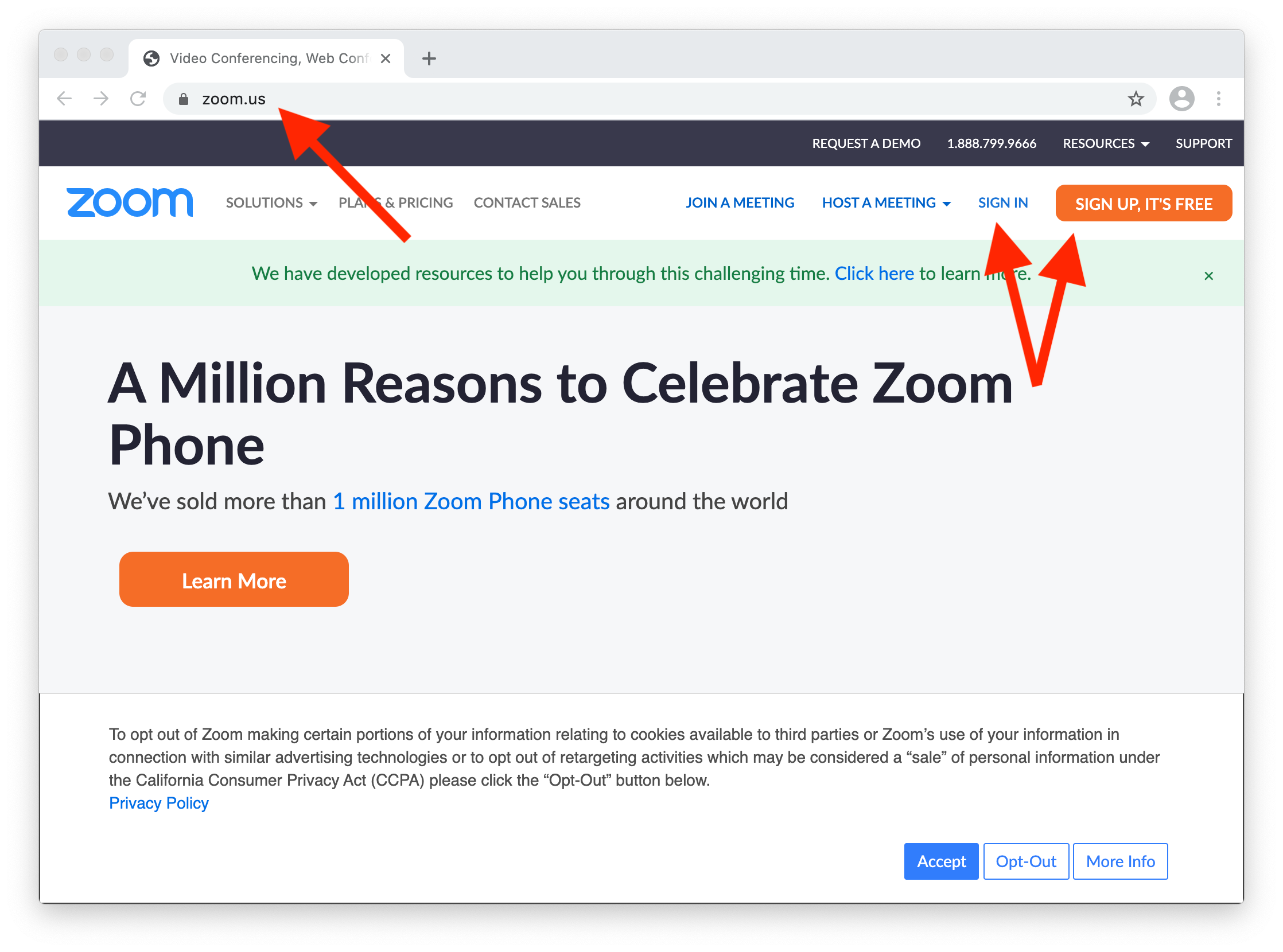
If you're installing Zoom for the first time, you will click the "Sign up, it's free" button at the top right to create a username and account (Use your school email address to create the account)
If you can't see the video, click sign in and use your school email address and password
If you have trouble viewing the video above, or if you'd rather read step-by-step instructions, follow the steps below:
1. Go to zoom.us in your browser

2. If you've created an account in the past, you can click on "sign in." If you've never created a Zoom account, click on "Sign up, it's free"
If you have previously created an account, skip to step 8
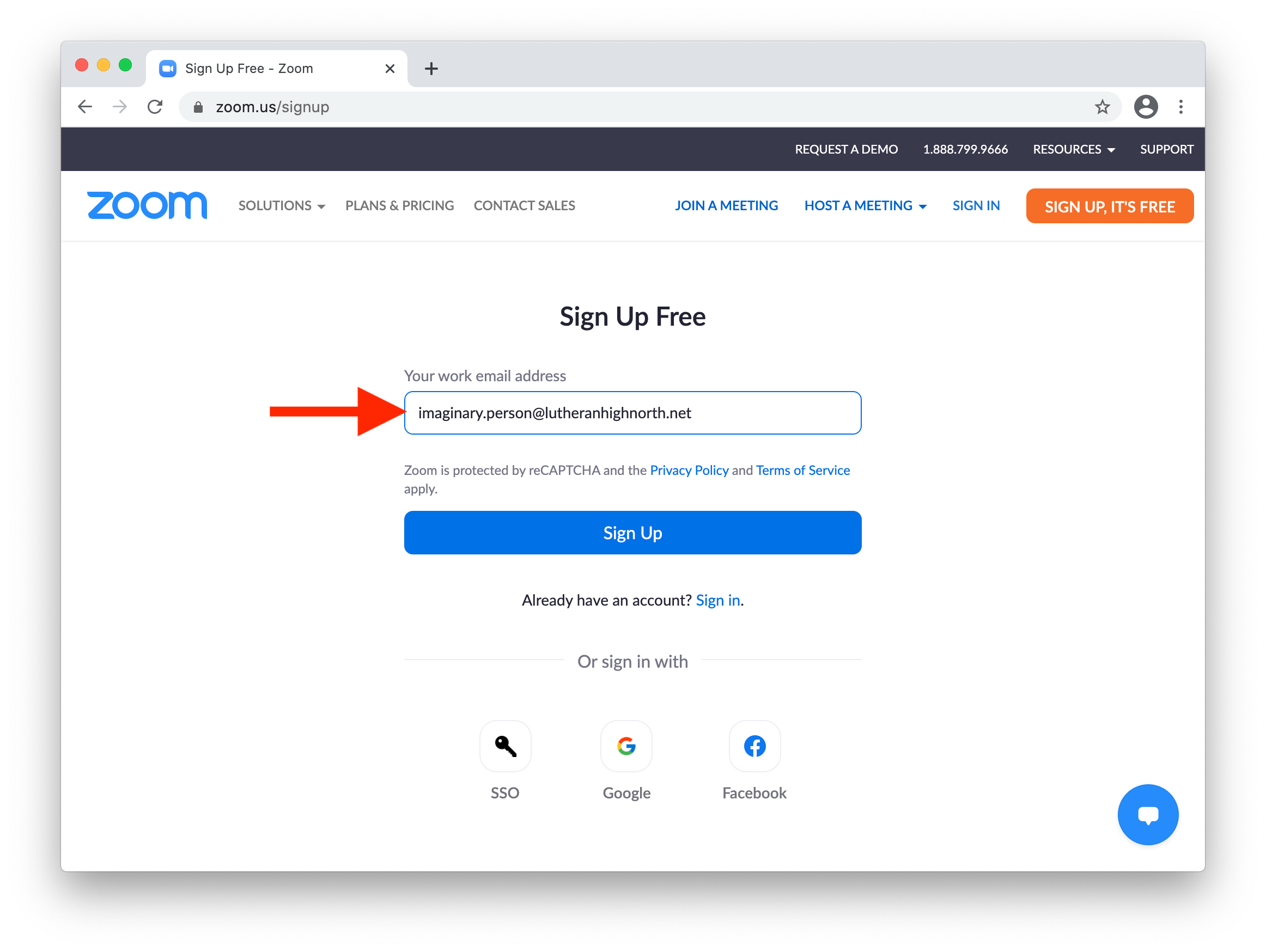
3. After entering your birthday, enter your school email address and click "sign up"
4. Now check your school email in Outlook or at outlook.office365.com 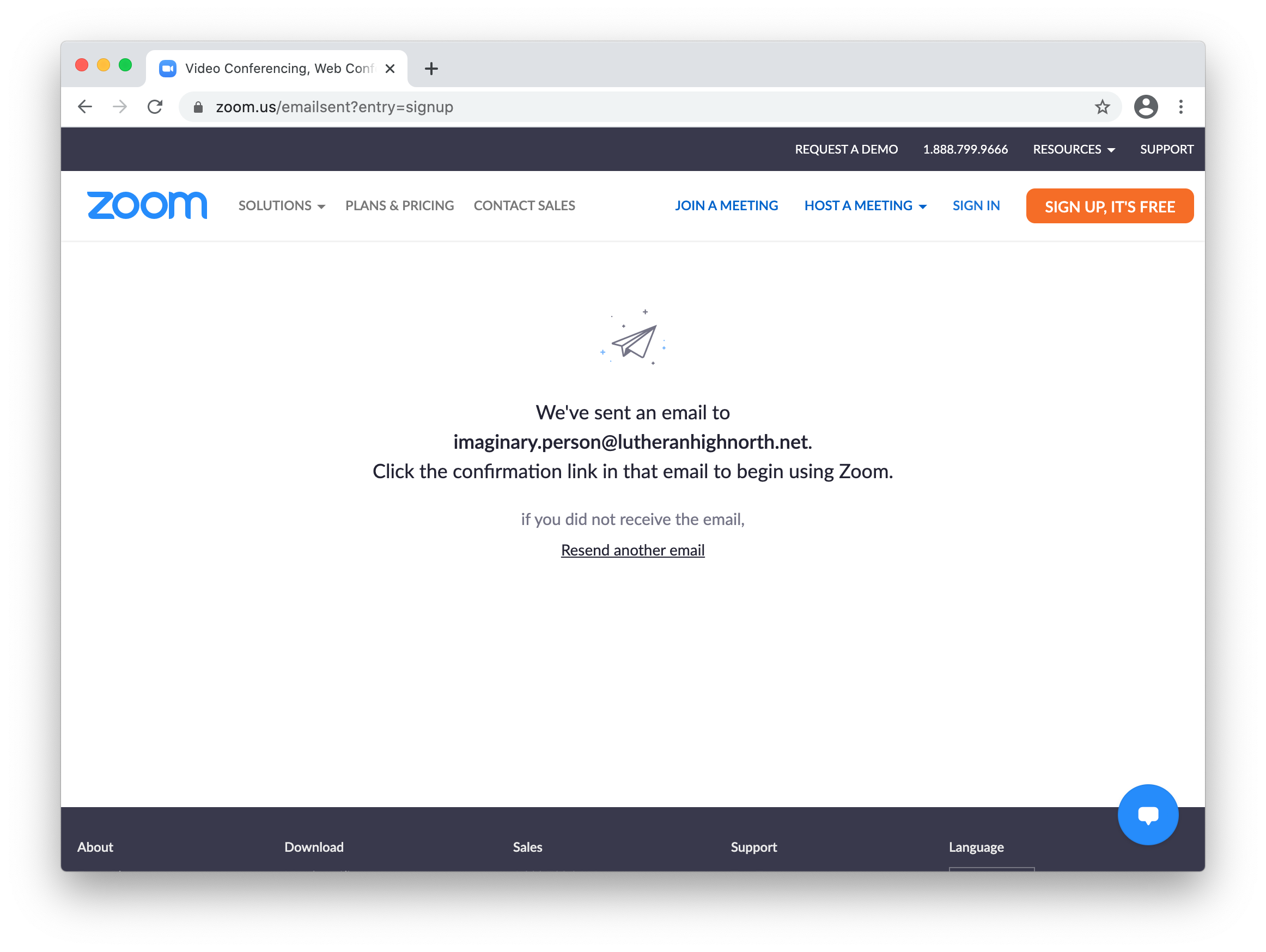
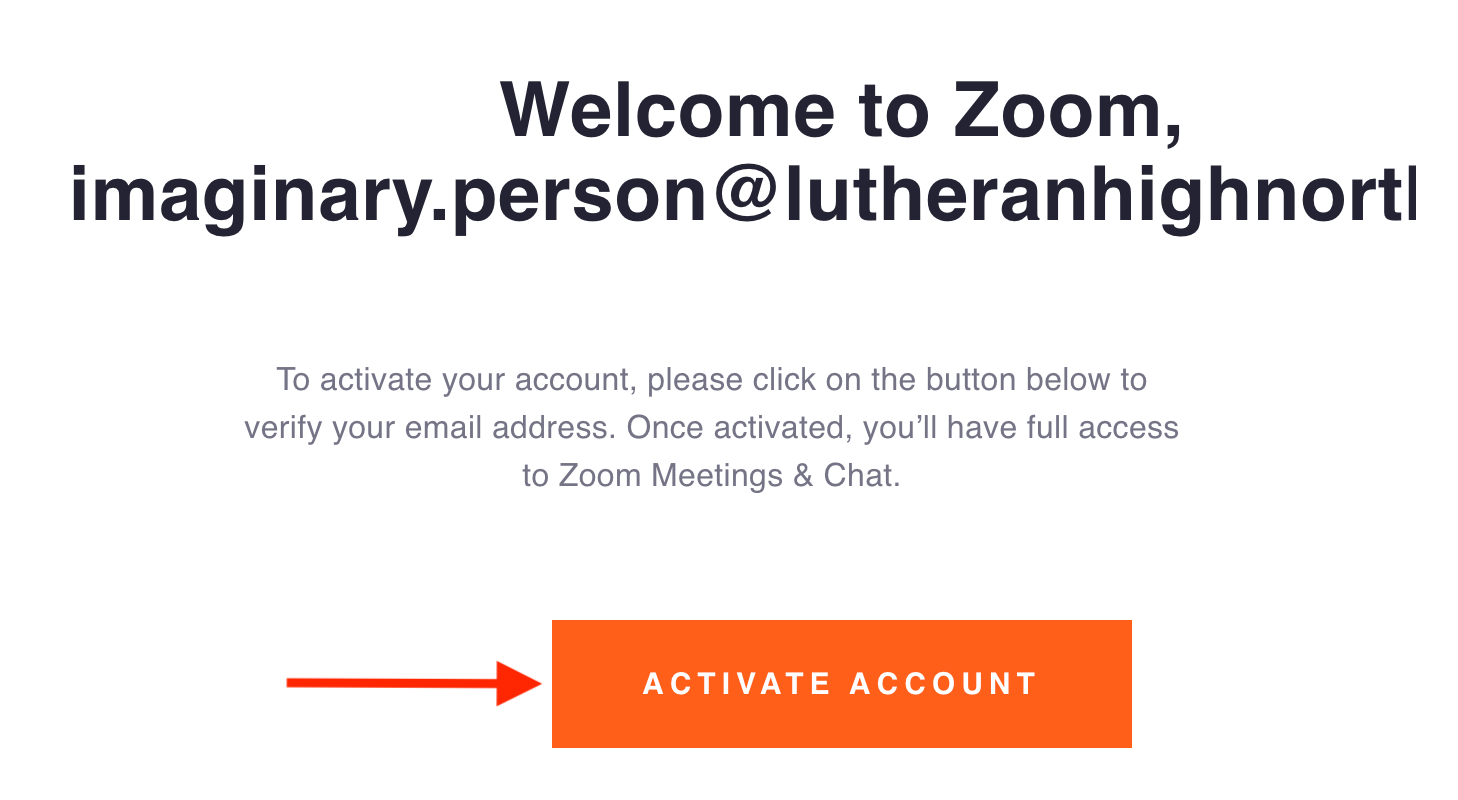
5. Find the email from Zoom and click the "Activate Account" button
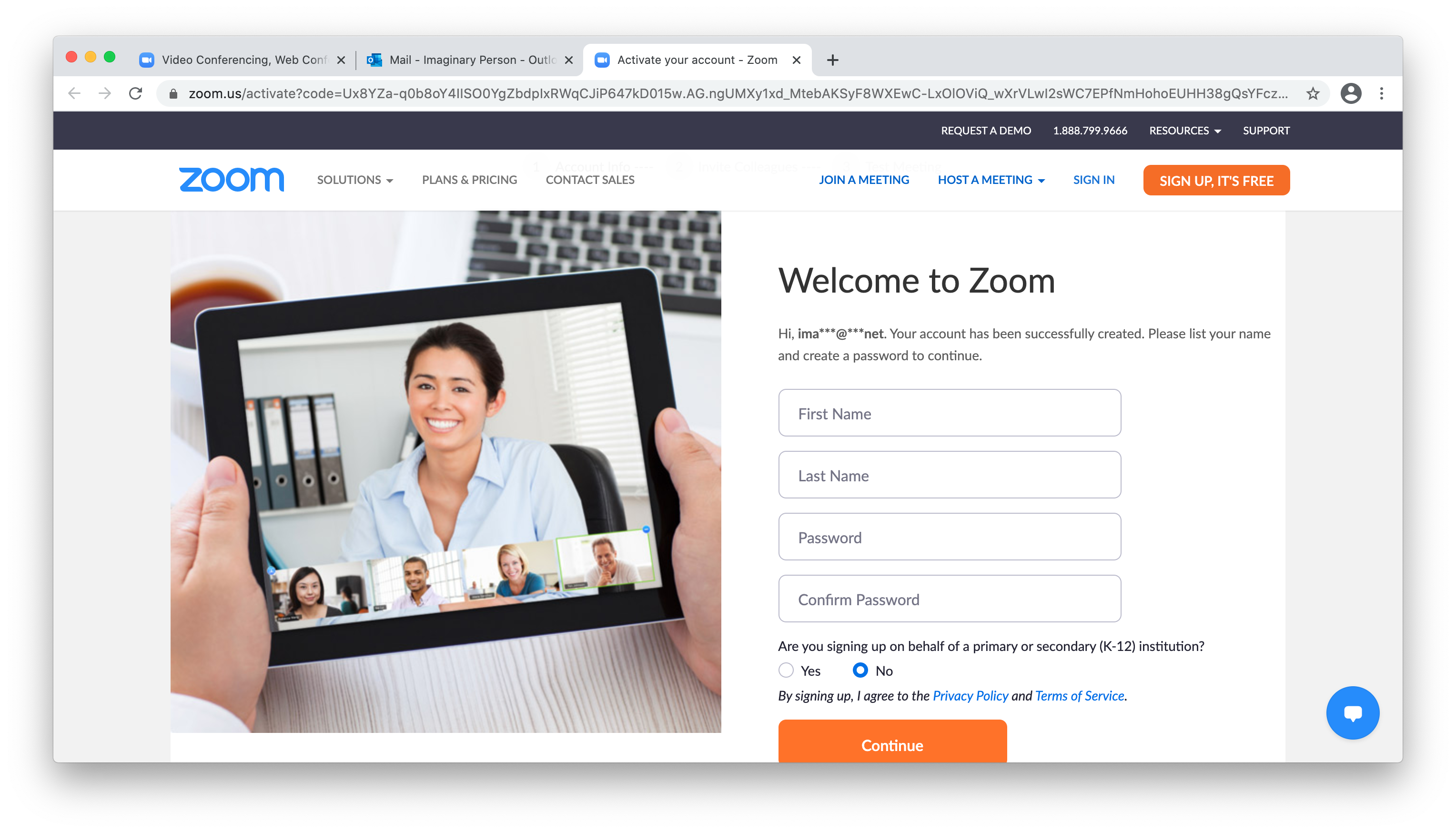
5. You'll be taken back to the Zoom website where you'll enter your name and create a password. The answer to the question about signing up on behalf of a school is "no"
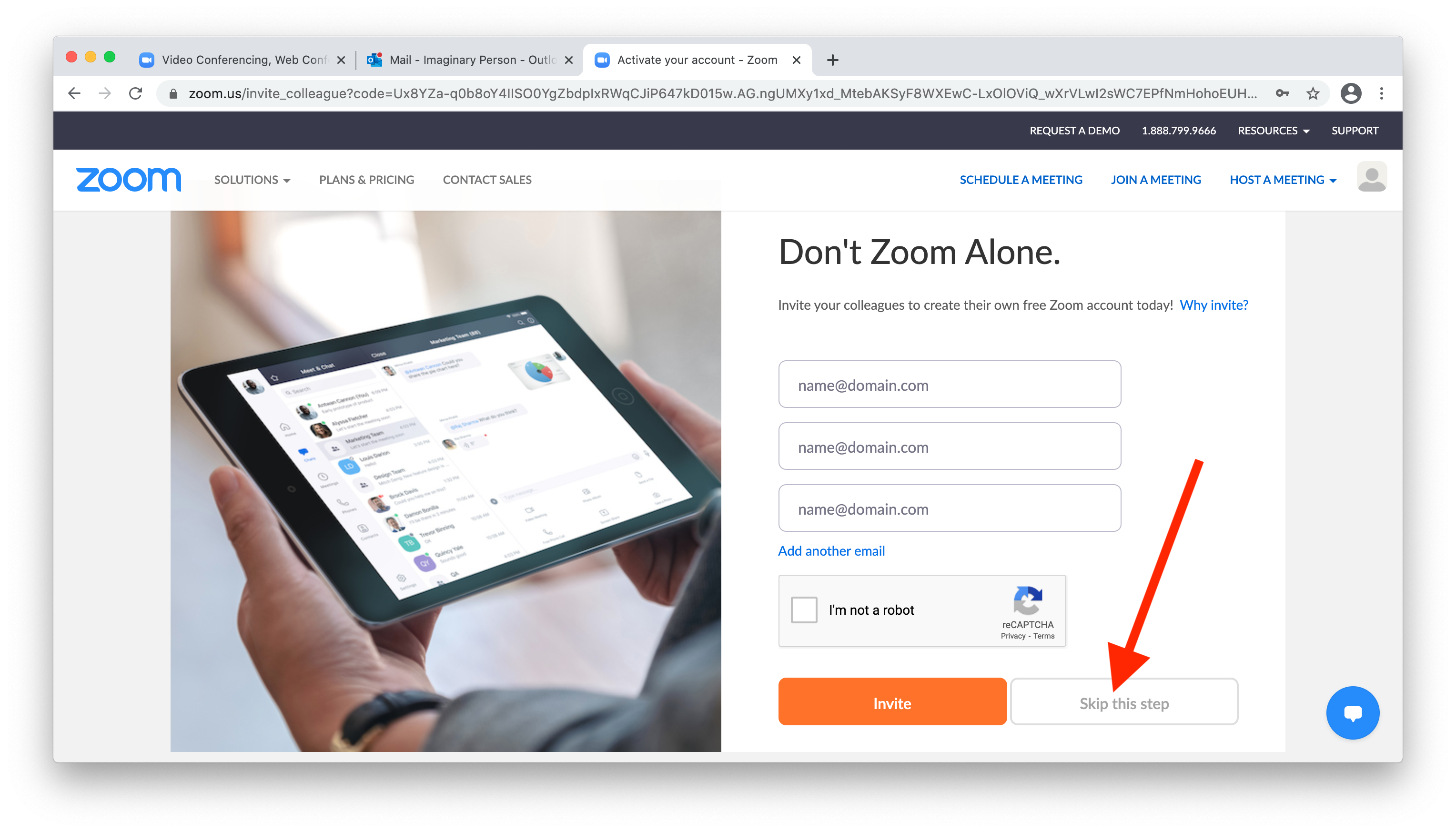
6. You can skip this step
7. And you can ignore this step, since you won't be starting your own meetings. You'll be joining your teacher's meetings. Now that you have an account, let's download the Zoom application.
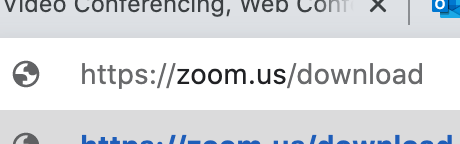
8. To download Zoom, first go to zoom.us/download
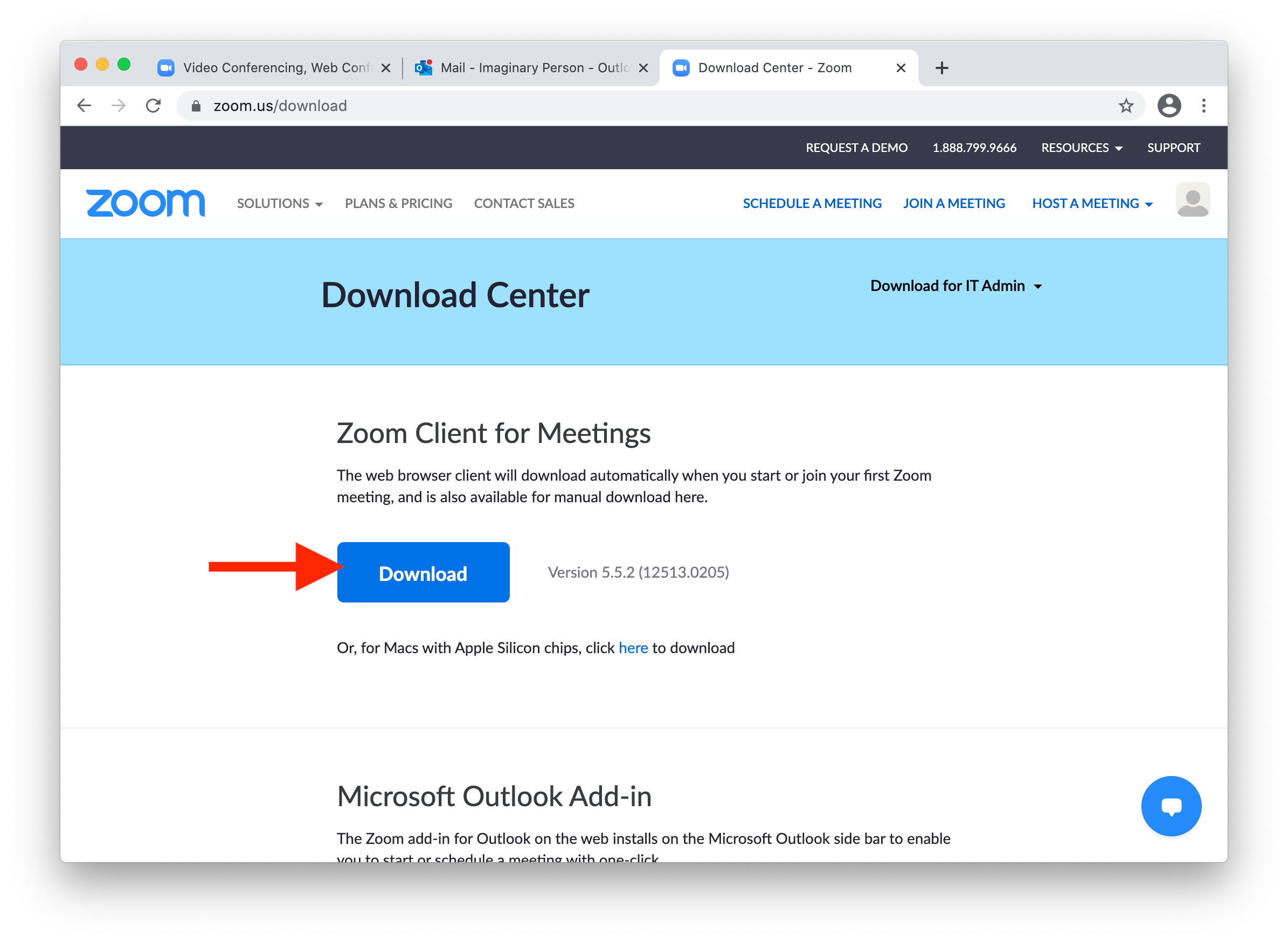
9. Click the "download" button under "Zoom client for meetings" (your Mac does not have a silicon chip)
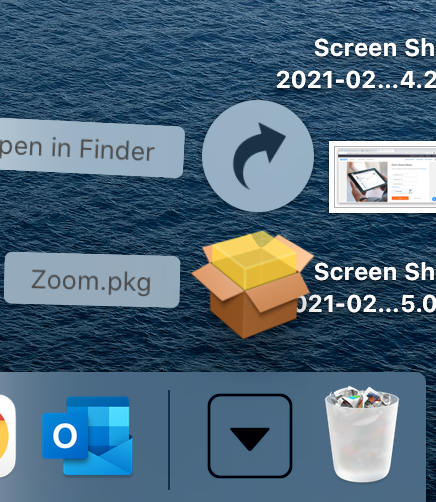
10. Go to your downloads folder and open the package file that downloaded named "Zoom.pkg"
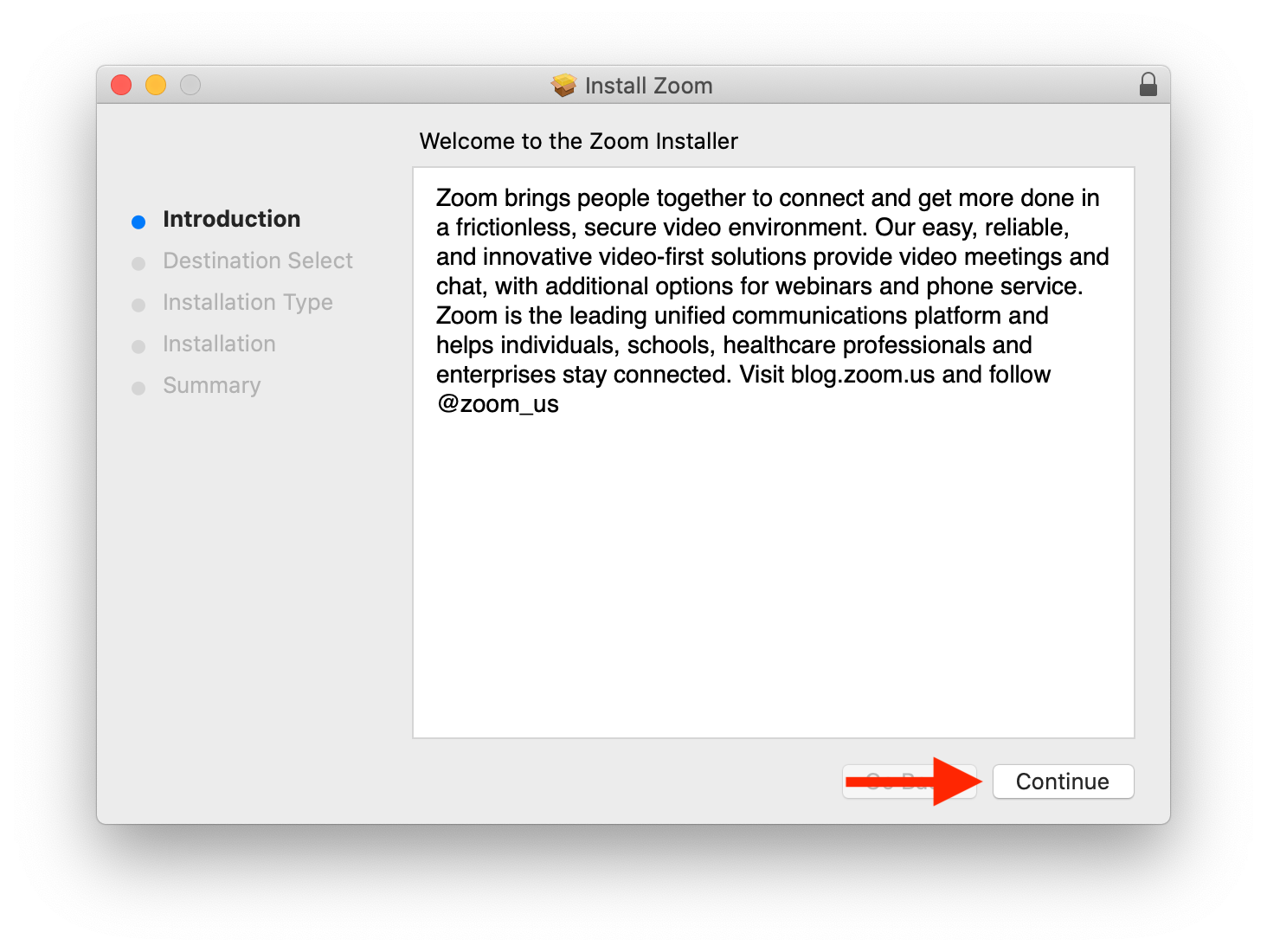
11. The installer will open. On the first screen, click continue
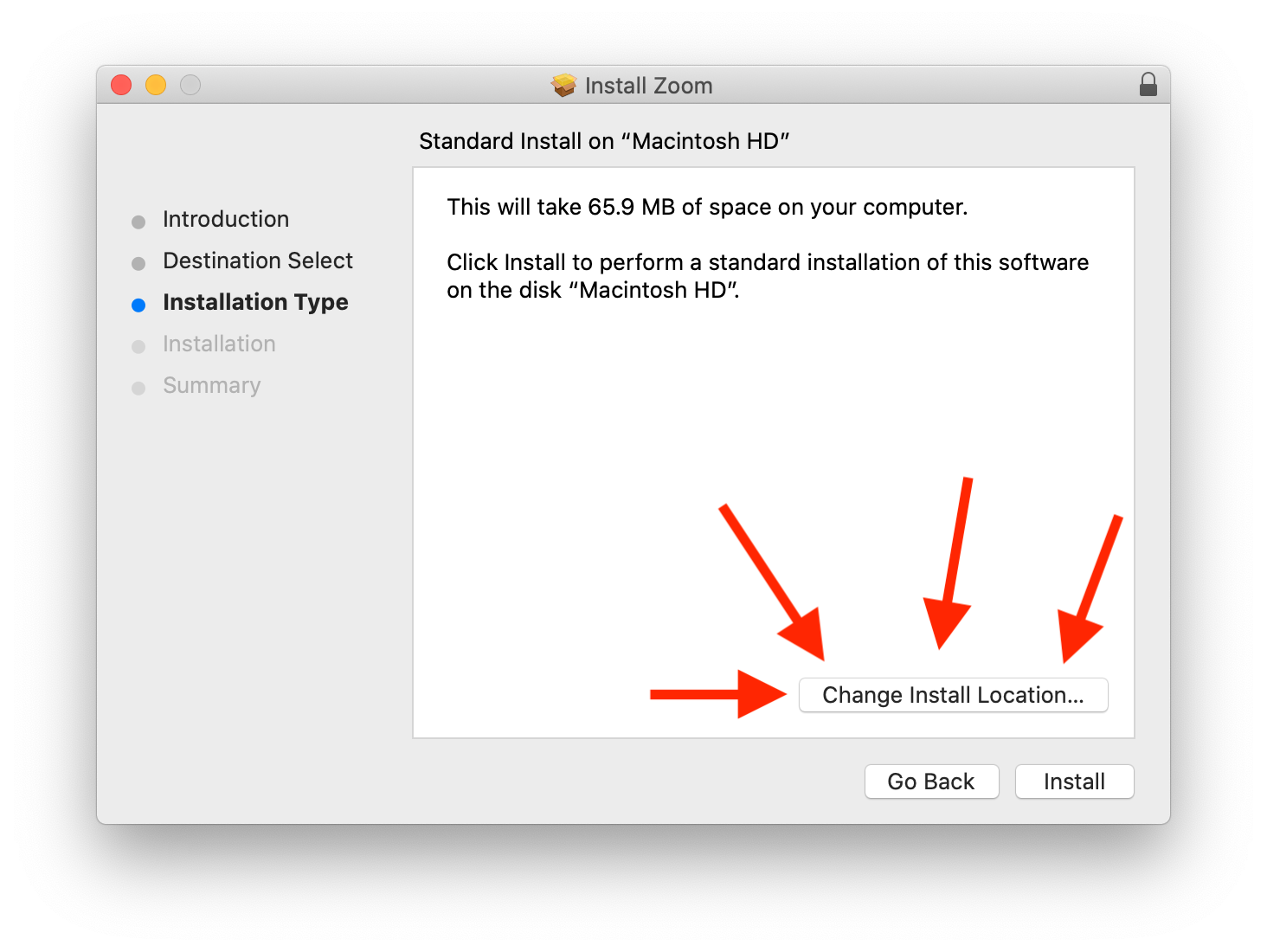
12. This part is SUPER IMPORTANT! Don't click on install yet. If you do, it will ask for an administrator password, which you don't have. Click on "Change install location" instead.
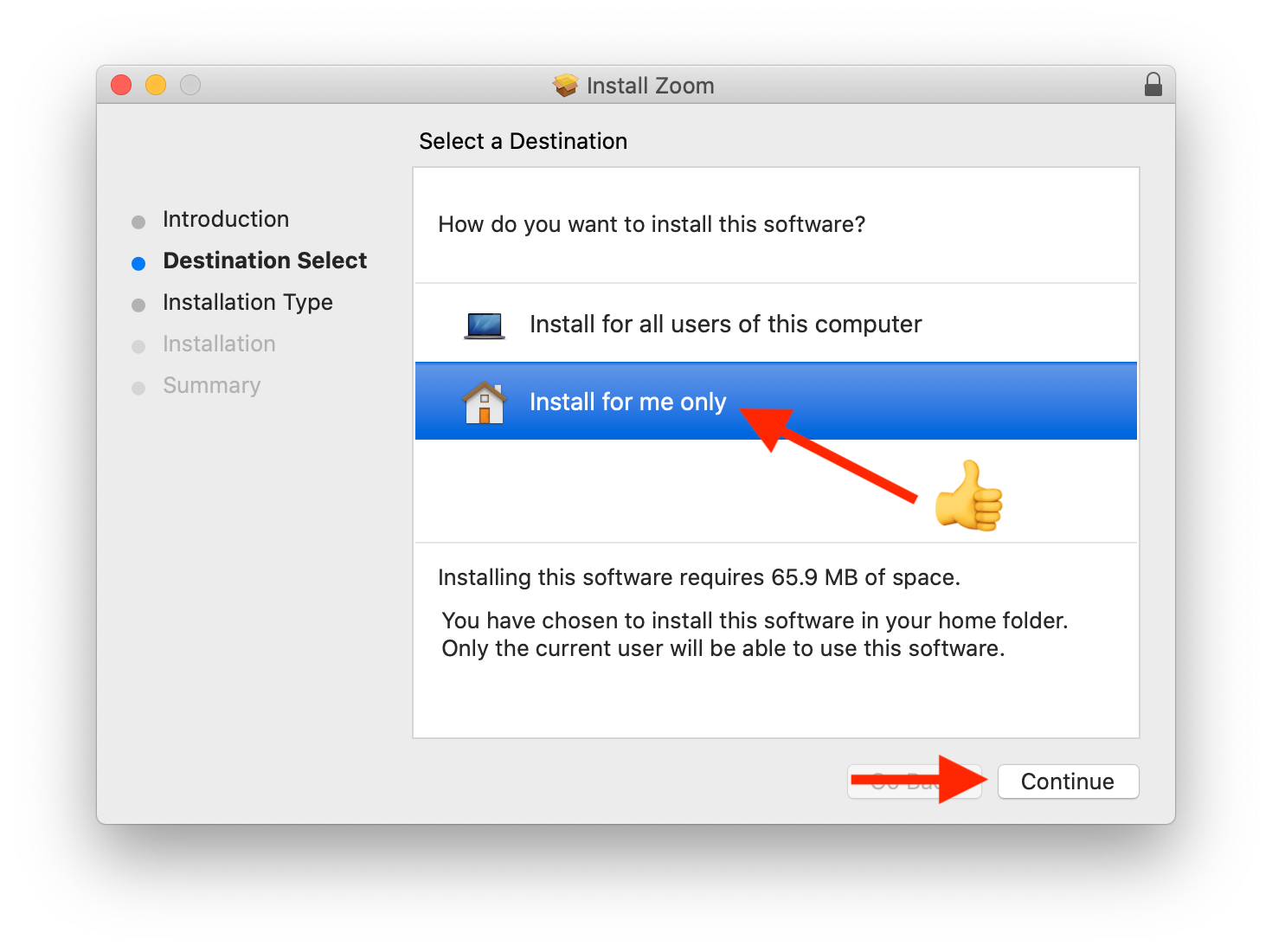
13. On this screen, change it to "install for me only." This will allow you to install without a password. Now click "continue"
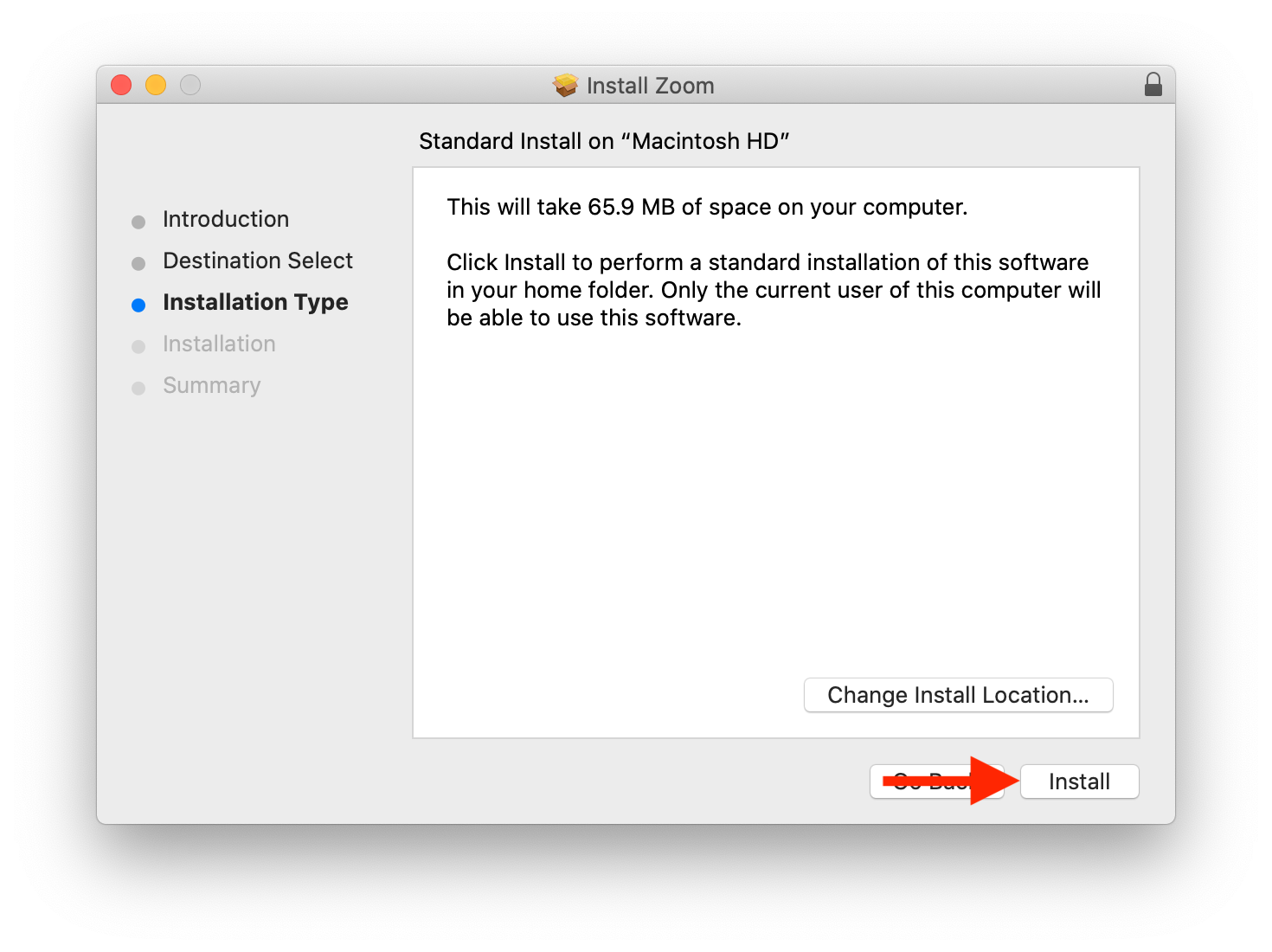
14. NOW it's OK to click install
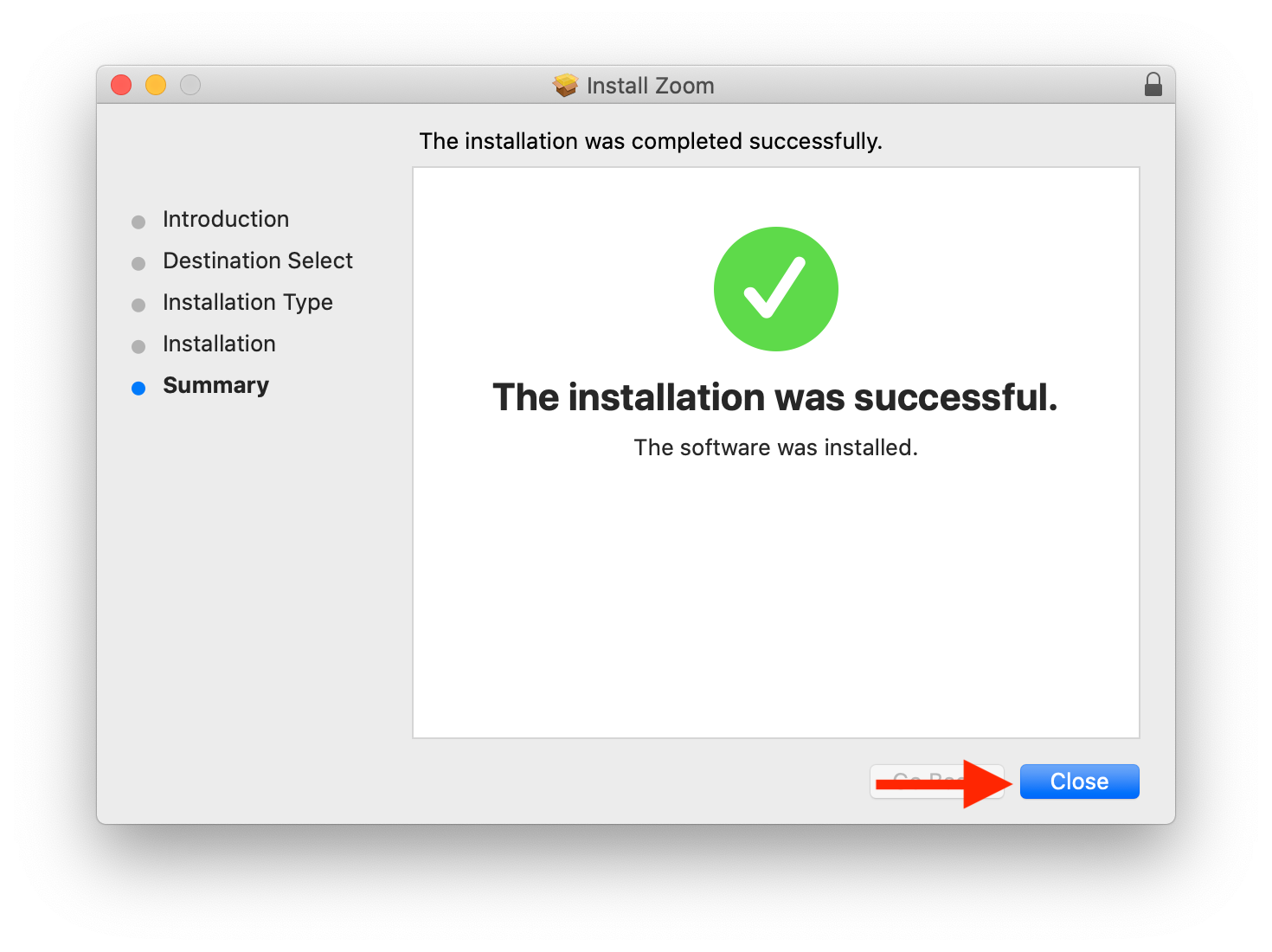
15. Click close
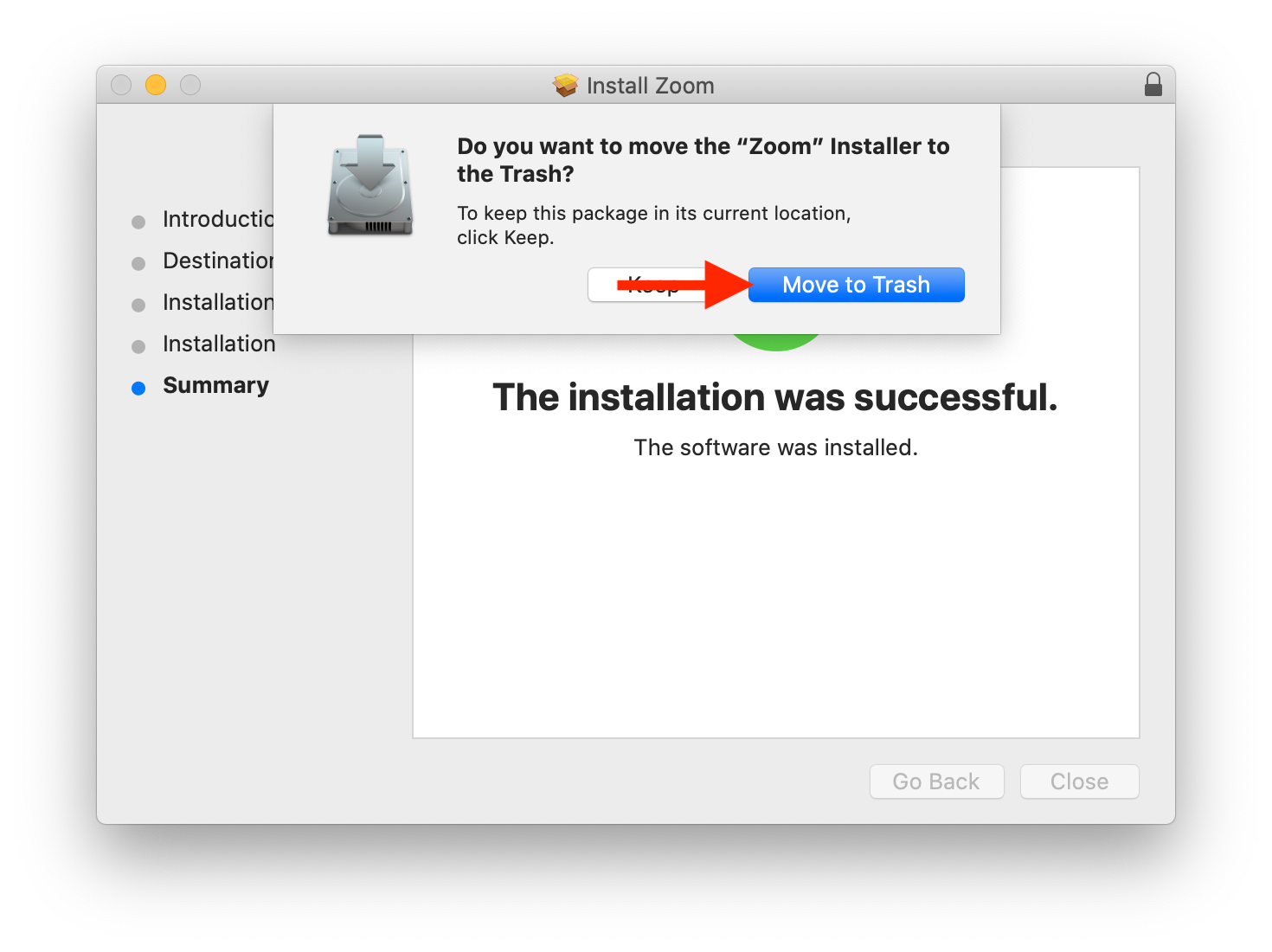
16. Click "Move to trash"
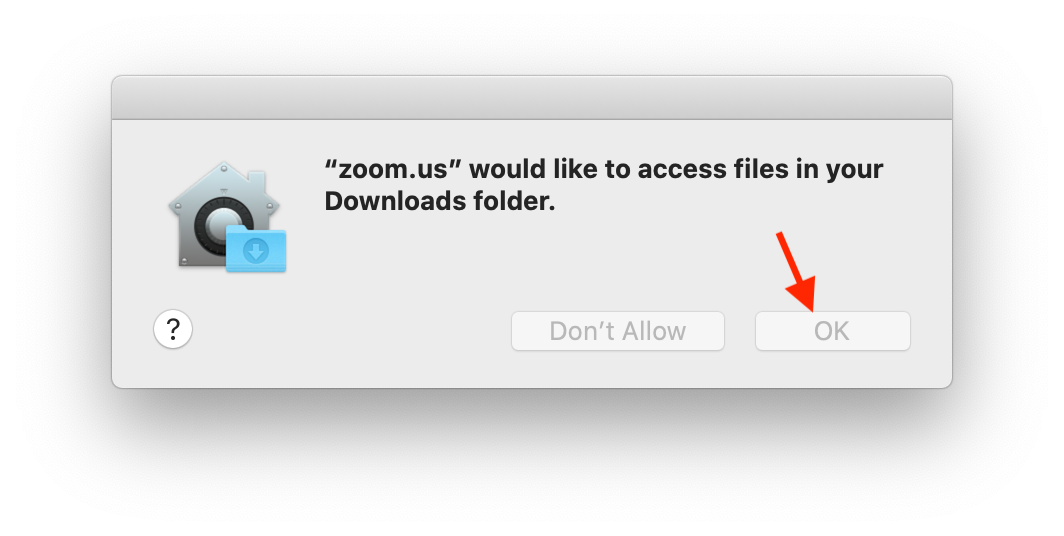
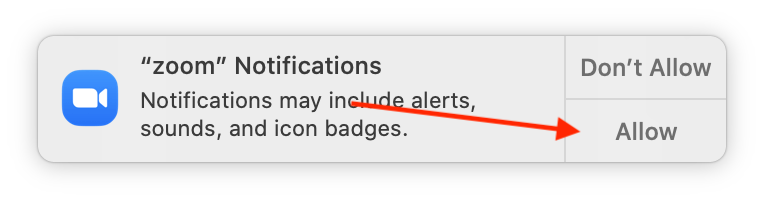
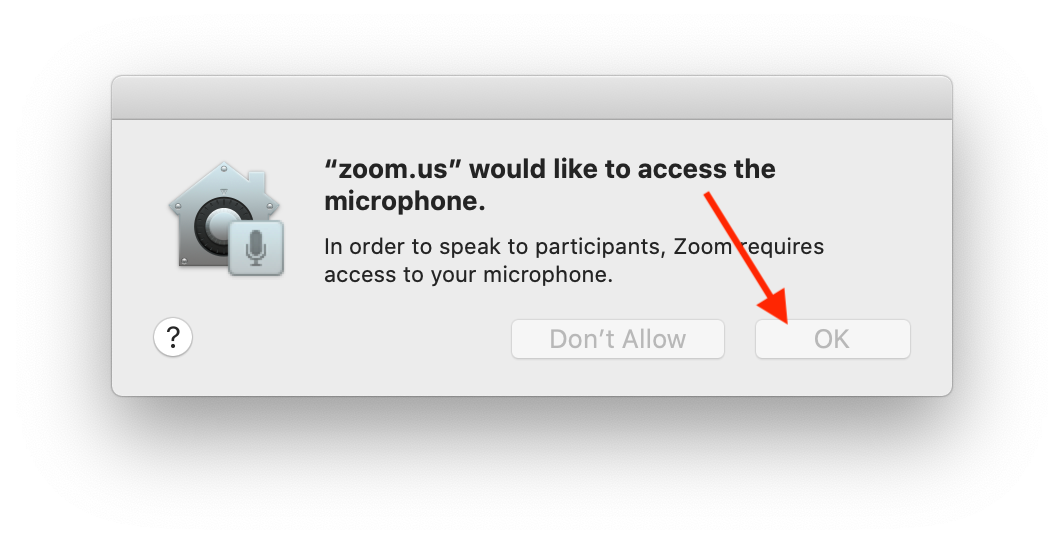
17. Now Zoom will automatically open. You'll see several prompts asking for permission to access files, a mic, camera, and notifications. You want to ALLOW all of these things.
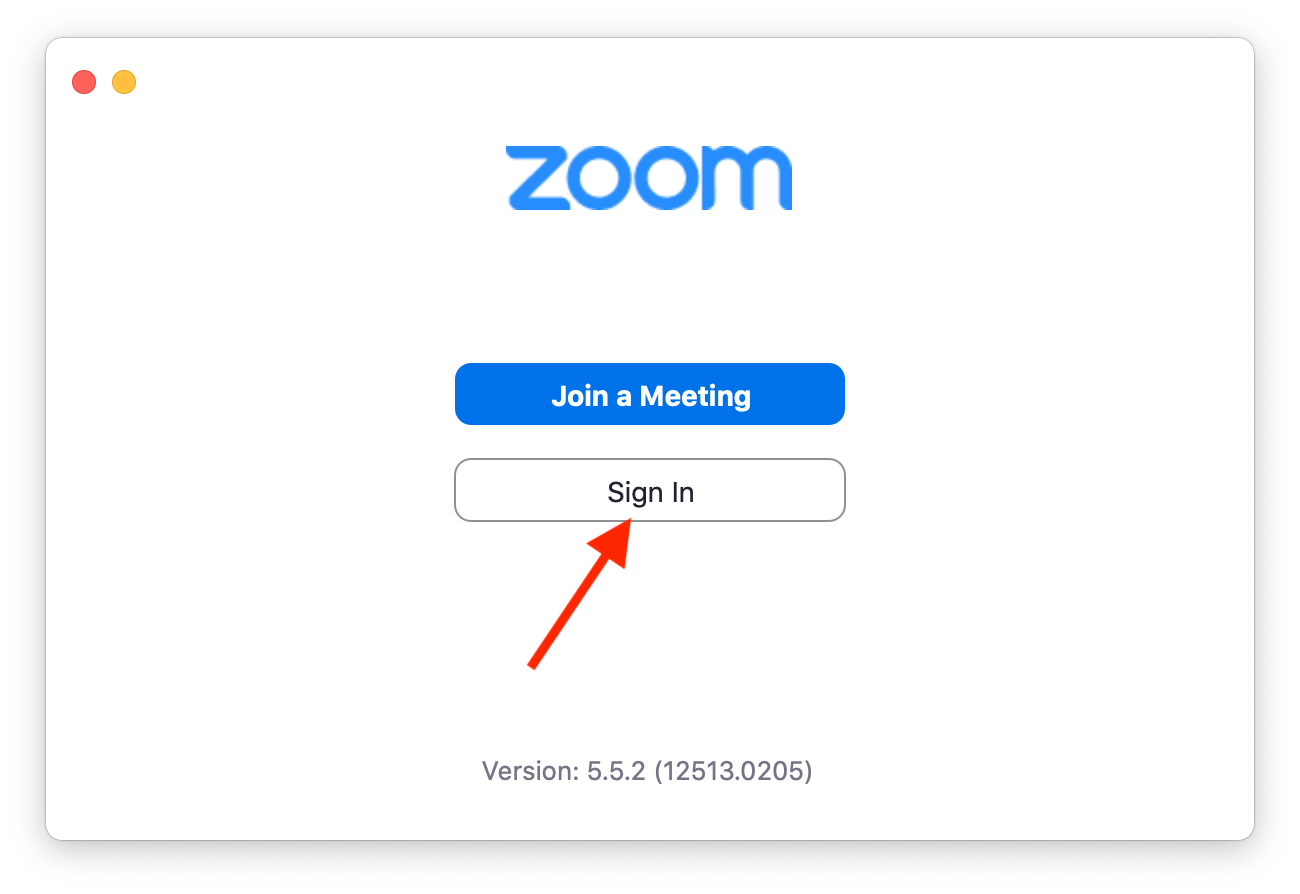
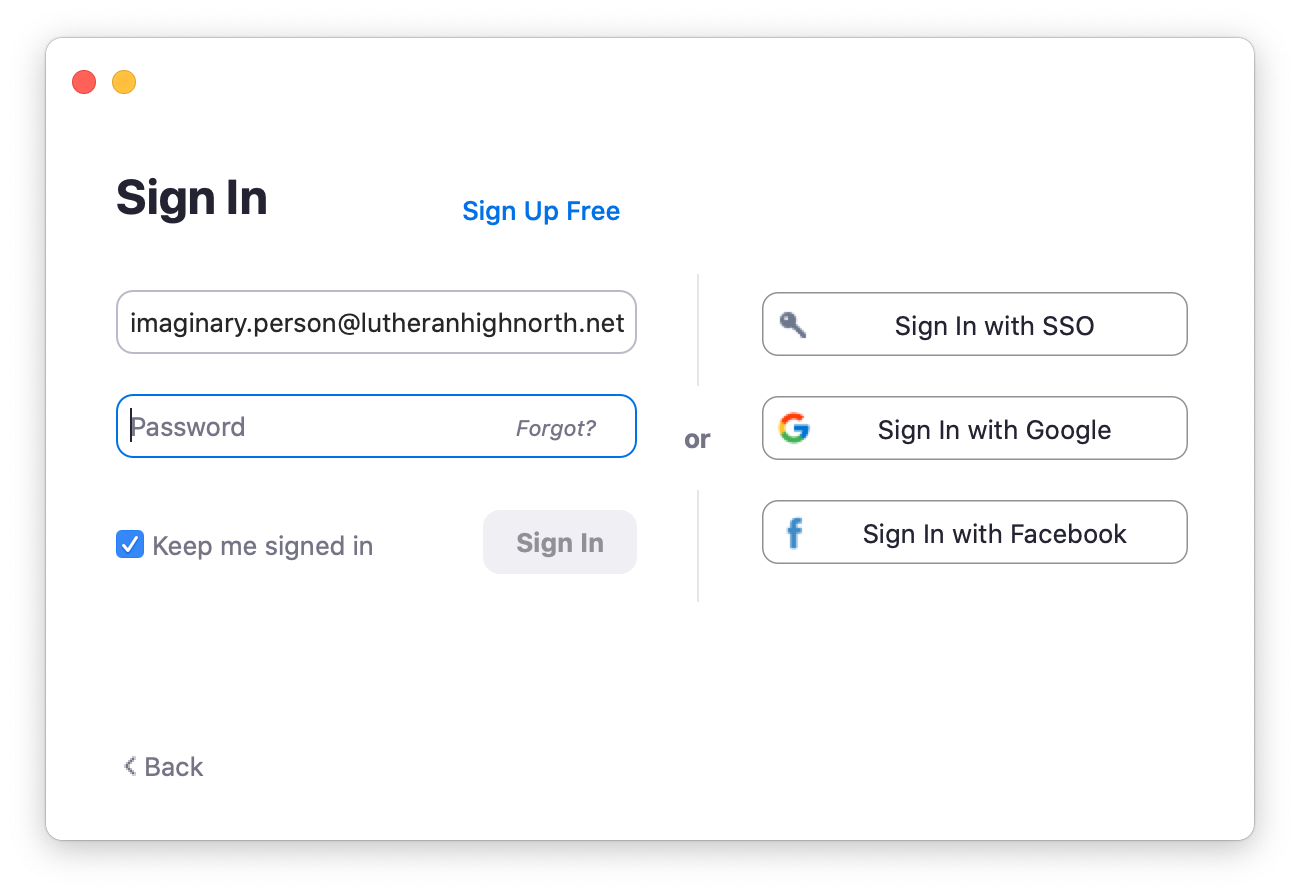
18. Sign in to Zoom with the account you made in previous steps
19. More things to ALLOW will appear
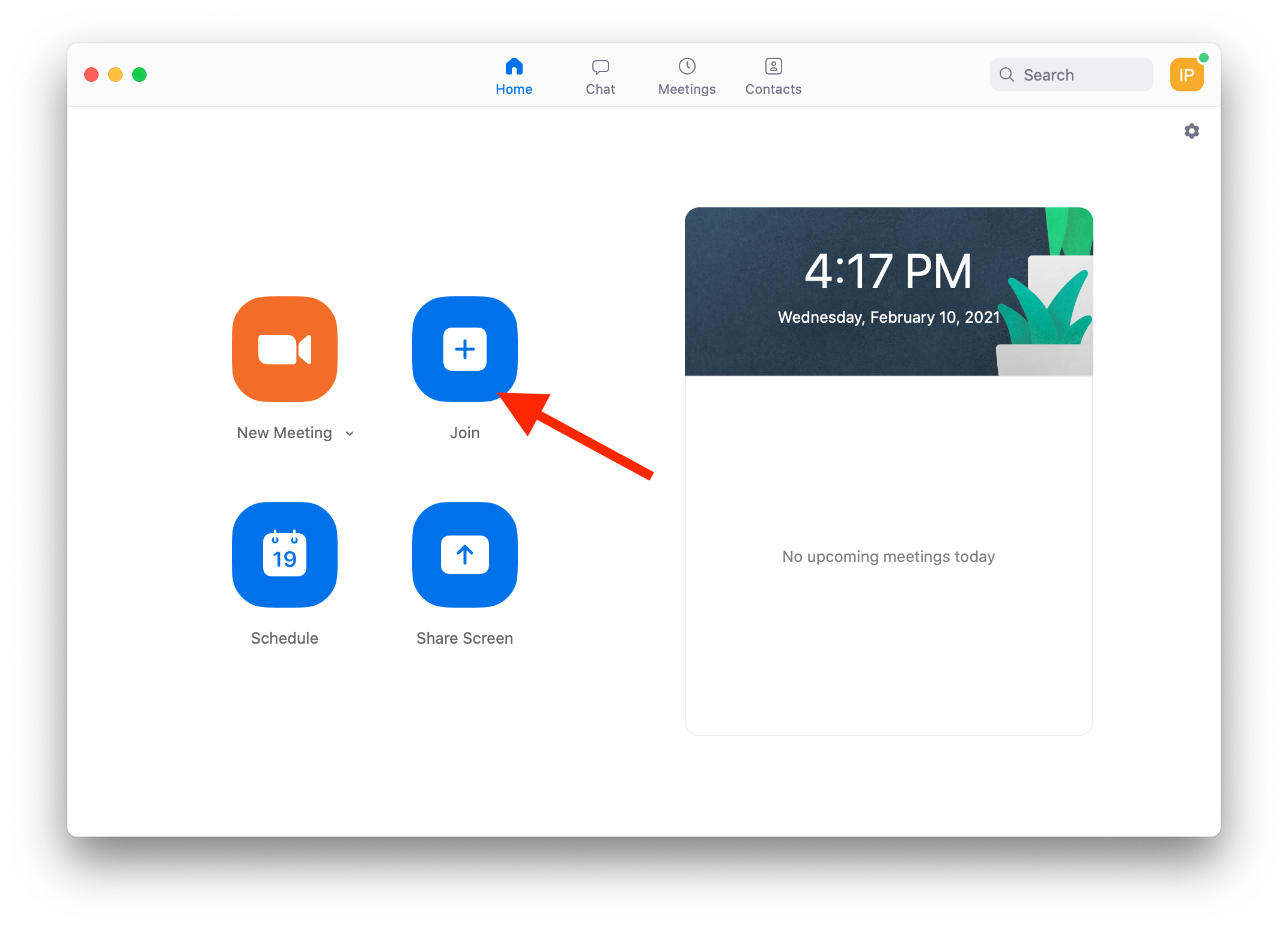
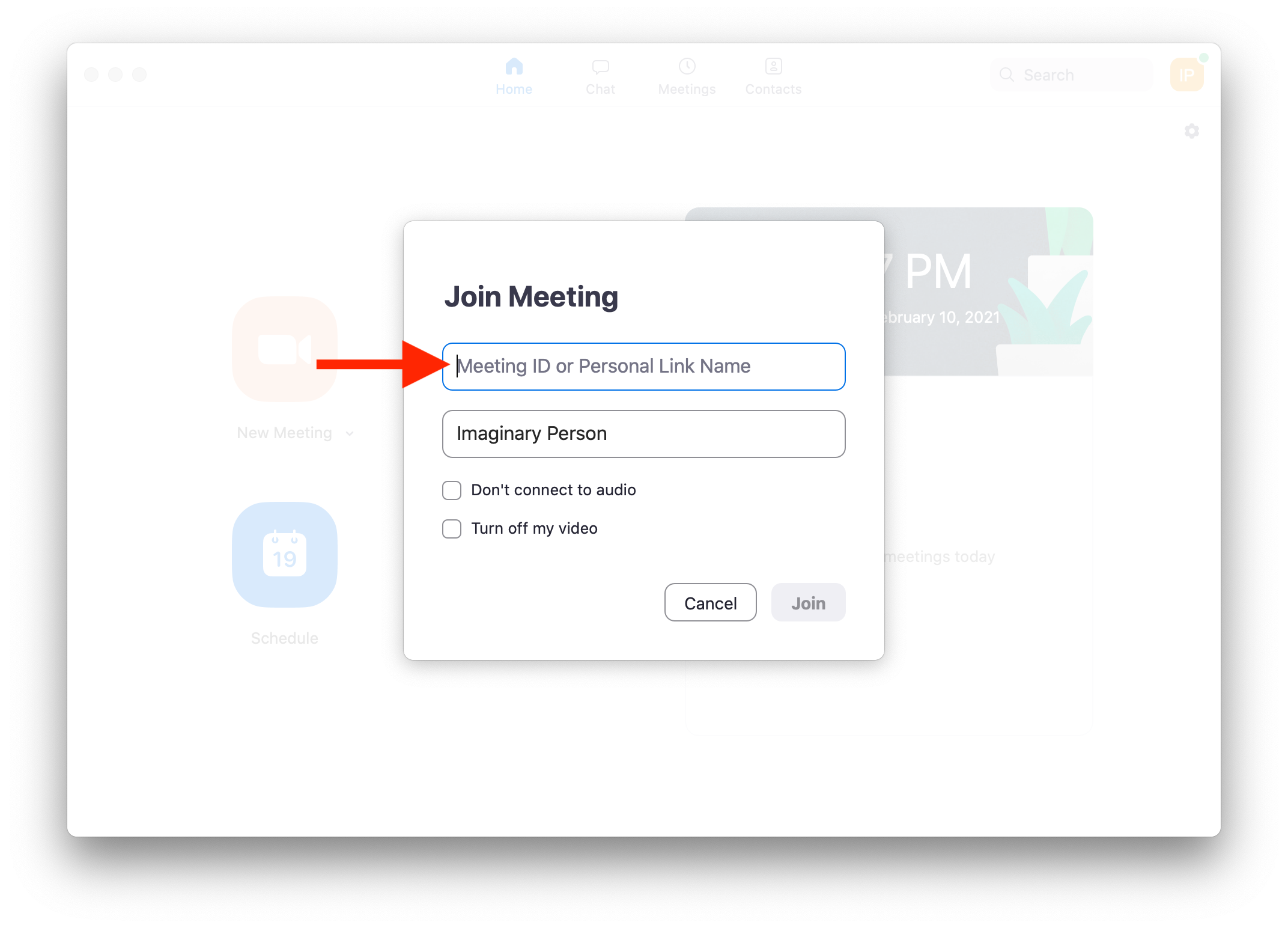
20. Now you are ready to Zoom!! If you click on the "join" button, you can enter a teacher's meeting ID. However, most teachers will give you a link that you can click on that will automatically open zoom and connect you to their meeting. This is easier than clicking "join" and adding the ID. Look for those links in your emails and/or on Canvas.